Let’s face it: passwords are a pain, and deep down, you probably know your current setup isn’t completely safe. Between random corporate database leaks and incredibly smart phishing emails, relying on a text string you memorized back in 2018 just doesn’t cut it anymore.
Your Google account holds your entire digital life. If someone gets inside your Gmail, they get your personal photos, your bank reset links, and access to half the apps on your phone.
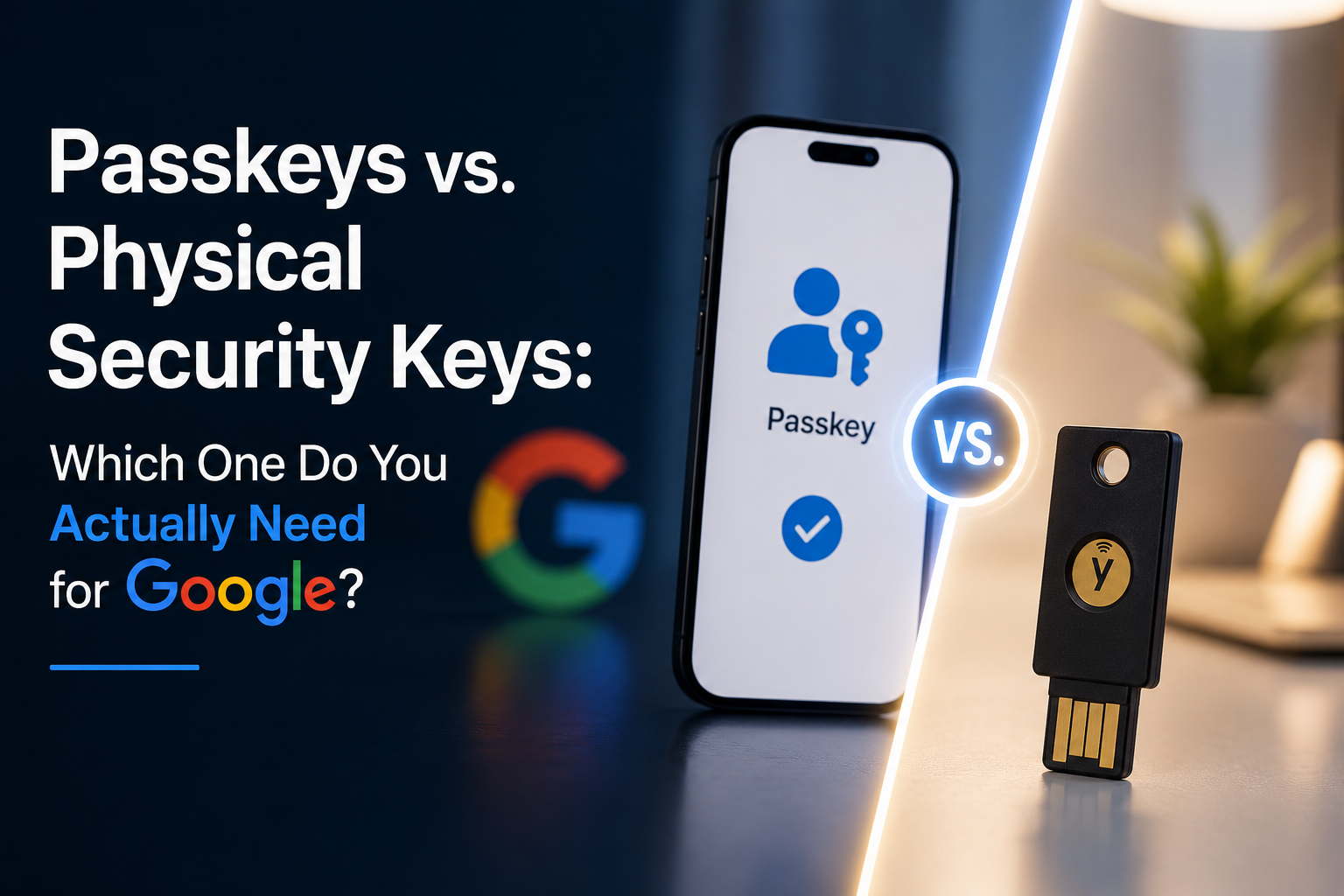
To stop this nightmare, Google has been pushing two newer, password-free security features: Passkeys and Physical Security Keys. They sound like the same thing, but they act completely differently under the hood.
Here is a straightforward, real-world breakdown of how they actually work, how they handle your data, and how to choose the right one without getting bogged down in corporate tech-speak.
1. How the Tech Works Under the Hood
You don’t need a degree in cryptography to understand why both of these methods completely crush traditional passwords. They both run on a system called FIDO2.
The Simple Math Part
With a normal password, both you and Google share a secret. If a hacker tricks you into giving up that secret, or if Google accidentally leaks their database, you’re done for.
FIDO2 fixes this by splitting the login into two distinct parts: a public lock and a private key.
- The Public Key: When you turn on security, your phone sends a “digital lock” to Google. This lock sits out in the open on their servers. It’s totally useless to a hacker because it can only confirm who you are—it can’t grant access by itself.
- The Private Key: Your local device creates a “digital signature” that stays locked inside your phone or computer’s hardware chip. It never, ever travels across the internet to Google.
Why Phishing Scams Just Stop Working
Phishing only works because humans are easy to trick. You get a fake email saying your bank account is locked, click a sketchy link, and type your password into a page that looks exactly like Google but is actually run by a scammer.
With these new keys, your browser handles the talking. When you try to log in, your browser looks at the address bar. If you are on a fake site like g00gle.com instead of the real accounts.google.com, your authentication hardware notices the wrong URL immediately. It simply refuses to sign the login. Because there is no password for you to type, the hacker walks away empty-handed.
2. Passkeys: The Easy, Everyday Option
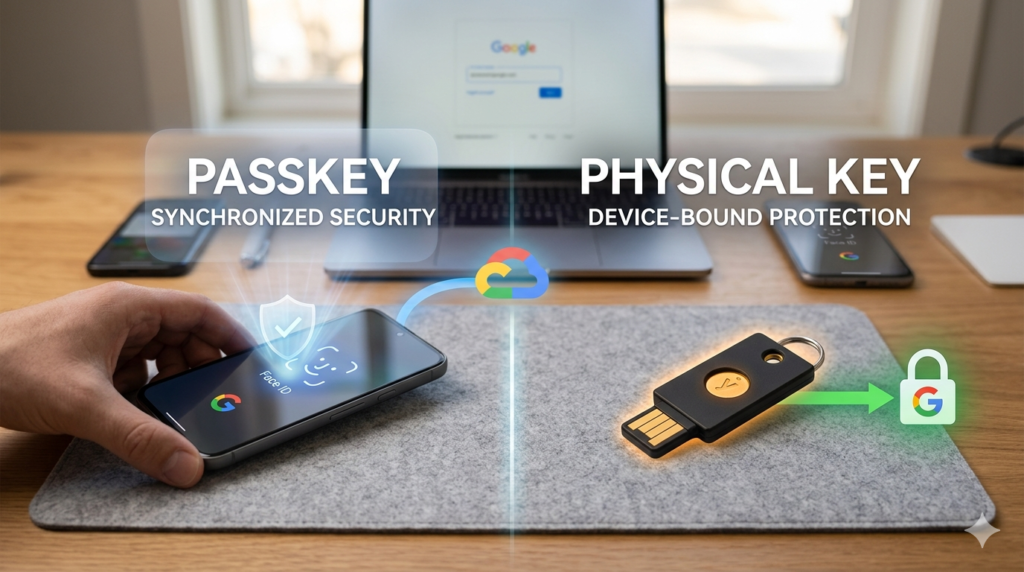
A passkey is essentially a digital security token managed purely by your phone or computer’s built-in software. Instead of buying a separate plastic gadget, passkeys turn the tech you already carry in your pocket into your actual login key.
How They Move Between Devices
The best part about standard passkeys is convenience. They link directly to your main cloud accounts. Depending on what tech you use every day, your passkeys automatically back up and sync through:
- Apple iCloud Keychain (if you use an iPhone or Mac)
- Google Password Manager (if you are on Android or use Chrome)
- Third-party apps like Bitwarden or 1Password
Because they sync via the cloud, you won’t get stranded. If you upgrade to a new phone or drop your iPad down the stairs, your passkeys copy over automatically during your normal cloud setup.
What Logging In Looks Like
Signing into your Gmail with a passkey takes about three seconds. It goes like this:
- Type in your email address on Google.
- A prompt pops up on your screen asking to verify it’s you.
- You scan your face (Face ID), touch the fingerprint reader (Touch ID), or type your laptop’s lock PIN.
- Boom. You’re in.
No passwords to remember, and no waiting around for a slow 2-step text message code to hit your phone.
3. Physical Security Keys: The Offline Lockbox
A physical security key is a tiny, dedicated piece of plastic and metal that looks like a thumb drive. Companies like Yubico (who make YubiKeys) and Google (with their Titan keys) build these for one specific reason: total physical isolation.
The Big Difference: No Cloud Allowed
Unlike a passkey, a physical hardware key refuses to sync to the cloud.
When you register a physical key, the private cryptographic signature is generated right inside a tiny, hardened security chip hidden inside the plastic casing. It cannot be copied, it cannot be backed up to iCloud, and it cannot be stolen by malware hiding on your laptop. If someone wants to log into your account, they have to physically walk up to you, stick their hand in your pocket, and take the plastic key.
The Physical Touch Mechanic
To log in with a hardware key, you have to actually be there in person.
- Enter your username and password on your computer.
- Google will ask for your key. You plug it into a USB port, or if you’re on a phone, you tap the key against the back using NFC (the same tech used for Apple Pay).
- The key has a small gold disc on the side. You must physically touch that gold circle with your finger.
- Your finger completes a tiny electrical circuit, telling the internal chip that a real human just pressed it. The key flashes, signs the login, and you are granted access.
4. Head-to-Head: Weighing the Real-World Tradeoffs
Let’s look at how these choices play out in everyday life.
| The Feature | Synced Passkeys (Software) | Physical Security Keys (Hardware) |
|---|---|---|
| Out-of-Pocket Cost | Free. It uses the smartphone or laptop you already own. | Paid. Expect to spend $25 to $75 per key. |
| Daily Convenience | Amazing. Nothing extra to carry or forget at home. | Annoying. You have to keep a plastic dongle on your keychain. |
| Mixing Different Tech | Tricky. Logging into a Windows PC using an iPhone passkey means you have to scan a weird QR code on the desktop with your phone camera. | Simple. Plugs into anything with a USB port or taps over NFC instantly, regardless of the brand. |
| If You Lose It | No Big Deal. Your credentials are saved safely inside your iCloud or Google cloud backup. | Total Nightmare. If you lose your key and don’t have a backup registered, you are locked out of Google for days while support verifies your ID. |
| Remote Hack Defense | Very Good. A hacker would have to steal your master cloud password and trick your device’s tracking walls. | Perfect. A hacker on the other side of the world cannot bypass it. They need the physical plastic drive. |
5. Google’s Advanced Protection: For High-Risk Targets
If your job makes you a target for hackers—like journalists, activists, politicians, or business owners handling major cash—Google offers a special lockdown mode called the Advanced Protection Program (APP).
Turning this on fundamentally changes how Google protects your data:
- It completely blocks simple 2-step verification text messages (since hackers can hijack sim cards).
- It blocks random third-party apps from reading your Gmail or looking through your Google Drive.
- It scans every single download with a heavy-duty malware filter.
Google used to force you to buy two physical keys to use this program. Now, they let you use standard synced passkeys too.
But keep this risk in mind: if you use a synced passkey, your security is only as strong as the password on your Apple or Google account. If a clever hacker takes over your Apple ID through a customer service trick, they can download your synced passkeys. A physical key stops that cold because it lives purely in your hand, completely offline.
6. The Verdict: What Should You Set Up Today?
You don’t need to overcomplicate this. Just look at how you live your digital life.
Go with Passkeys if:
You are an ordinary user who wants to ditch passwords and stay safe from everyday phishing emails. If you hate carrying extra junk on your keychain and want the comfort of knowing your cloud account will restore your data if you lose your phone, stick with passkeys. They are fast, free, and incredibly secure.
Go with Physical Keys if:
You run a business out of your Gmail account, manage expensive stock portfolios, or know you have a target on your back. If you want the absolute peace of mind that comes with knowing no one can touch your email without physically holding your keychain, buy the hardware.
The Smartest Setup: The Hybrid Approach
If you want the best of both worlds, do what the pros do.
Go into your Google Security settings and register your phone as a Passkey. That way, your daily logins stay super fast—just a quick face or fingerprint scan and you’re working.
Next, buy a single, decent physical security key (like a YubiKey or Titan Key), link it to that same Google account as a backup option, and toss it inside a drawer or home safe. If your phone gets run over by a car or your cloud backup hits a massive glitch, you still hold a physical, un-hackable master override to get back into your account instantly.
Need Help Setting This Up?
If you want to see exactly what these setting menus look like on a real desktop screen, check out this straightforward Google Advanced Protection Setup Guide. It walks you through the exact buttons to click inside your Google dashboard so you don’t accidentally lock yourself out while configuring your new keys.