Why Your Digital Clutter is Draining You
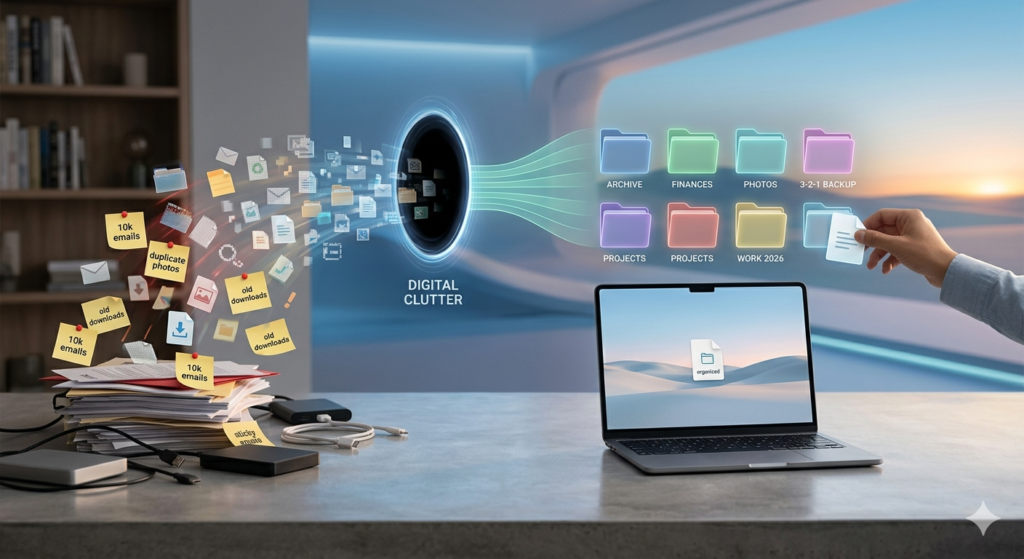
Physical clutter is loud. When your kitchen counter is buried under mail or your closet is overflowing, you see the problem every single day. But there is a silent, invisible version that drains your mental energy just as heavily: digital clutter.
Just because 10,000 unorganized screenshots, duplicate photos, and rogue cloud documents aren’t taking up physical space in your living room doesn’t mean they aren’t causing harm. They clog up your device’s operating system, trigger costly “out of storage” monthly fees, and create subtle, daily anxiety every time you open your laptop.
The “Infinite Storage Trap”
We live in an era of cheap cloud storage and massive local hard drives. Because we can store almost everything, we do. This is the infinite storage trap. Instead of deciding whether a file is actually worth keeping, we hit “save” and forget about it.
Over time, this creates severe digital friction—the frustrating tax of spending 10 minutes digging through nested folders or using chaotic search terms just to find a single utility bill or a presentation template.
If you are tired of swimming through a sea of digital noise, this guide is your way out. Below is a comprehensive, step-by-step blueprint designed to take you from digital chaos to a streamlined, automated system that stays clean with minimal effort.
🛑 Quick Summary: The Digital Declutter Blueprint
If you only have two minutes, here is the fastest way to kickstart your digital minimalism journey:
- Audit: Find your storage bottlenecks using visualization tools like DaisyDisk (Mac) or WinDirStat (Windows).
- Protect: Secure your files using the 3-2-1 backup strategy before deleting anything.
- Purge: Clear your Desktop and Downloads folder first to secure easy “quick wins.”
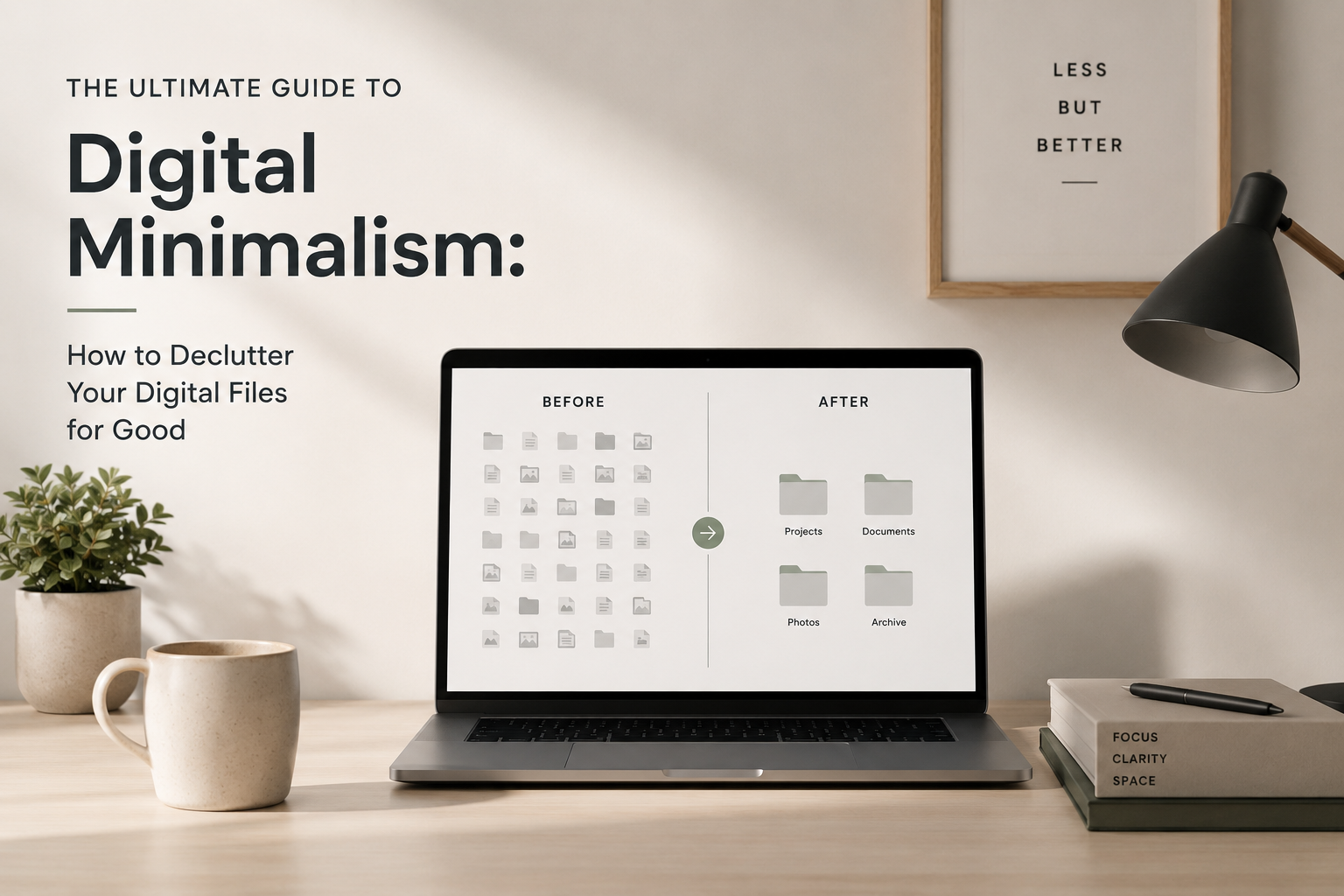
- Simplify: Build a shallow folder structure (maximum 3 layers deep) and use a unified naming convention (
YYYY-MM-DD_FileName).- Automate: Use smart folders and automation rules to sort your files moving forward.
Phase 1: The Digital Audit (Assessment & Mindset)
Before you begin deleting files haphazardly, you need to understand exactly what you are fighting. Digital clutter generally falls into four distinct categories. Knowing these 4 Pillars of Digital Clutter allows you to tackle them systematically.
- Active Clutter: This is the mess right in front of your face. It includes the 50 loose files scattered across your desktop, an unmanaged Downloads folder filled with old PDFs, and temporary working documents you haven’t looked at in weeks.
- Archive Clutter: This is long-term storage that has lost its structure. Think old tax returns from seven years ago, college essays, past employment records, and legacy photos imported from ancient smartphones.
- System Clutter: The junk your computer creates or hides. This includes duplicate files, leftover software installer packages (like
.dmgfiles on Mac or.exefiles on Windows), and hundreds of forgotten, empty folders. - Subscription/Cloud Clutter: The most expensive type of clutter. This occurs when you have redundant, uncoordinated backups automatically syncing across Google Drive, iCloud, Dropbox, and OneDrive simultaneously, causing you to pay for multiple storage tier upgrades.
How to Run an Inventory Check
To locate your biggest bottlenecks, check your device’s native storage settings to see a visual breakdown of what is occupying space.
- On Mac: Click the Apple icon > System Settings > General > Storage.
- On Windows: Go to Settings > System > Storage.
Look closely at your cloud drives as well. Check the storage meters at the bottom of your Google Drive sidebar or your iCloud account settings. Identify the single biggest category eating up your space—usually, it is either uncompressed video files, raw photos, or ancient system backups. Target that area first.
Phase 2: System Setup (Before You Touch a Single File)
The biggest mistake people make when decluttering is deleting files in a burst of inspiration, only to realize later they accidentally deleted an important tax document or a irreplaceable family photo. Setup your safety net first.
The Rule of 3-2-1 Backup
Before modifying or purging a single item, protect your data by adhering to the industry-standard 3-2-1 backup strategy:
- 3 Copies of Data: Keep your primary working file and at least two separate backup copies.
- 2 Different Types of Media: Store your backups on two distinct types of storage devices to protect against hardware failure (for example, your computer’s internal hard drive and a dedicated external hard drive).
- 1 Offsite Location: Keep one copy entirely separate from your physical home or office, which practically always means a secure cloud storage provider. If a physical disaster happens to your hardware, your cloud data remains safe.
Choosing Your Storage Architecture
You must decide where your data’s permanent home will be based on your workflow needs:
| Storage Type | Best For | Pros | Cons |
| Local Storage (SSD/HDD) | Large video files, private archives, offline editing | Extreme speeds, one-time cost, high privacy | Vulnerable to physical damage or loss |
| Cloud Storage | Active documents, cross-device access, teamwork | Accessible anywhere, automated backups | Recurring subscription fees, requires internet |
The “One In, One Out” Folder Framework
To prevent your future system from collapsing back into chaos, design a strict, shallow folder hierarchy. A great rule of thumb is to ensure your file paths are no more than 3 folders deep. Deep nesting (e.g., Documents > Work > 2024 > Projects > Clients > Marketing > Drafts) is where files go to die because the friction to save or find them is too high.
Instead, use broad categories and rely on your operating system’s built-in search tool to find individual files.
📁 Main Archive (Level 1)
   └── 📁 Finances (Level 2)
       └── 📁 Taxes 2025 (Level 3) -> Stop here!
Phase 3: The Step-by-Step Decluttering Process
Now that your backups are secure and your structure is ready, it is time to execute the cleanup. Work through these steps sequentially.
Step 1: The Desktop & Downloads Purge (Quick Wins)
Your desktop is your digital storefront; if it is messy, your mind feels cluttered the moment you log on.
Start by clearing the “Desktop Graveyard.” Create a temporary folder on your desktop labeled [To Sort]. Drag every single loose file on your desktop into that folder. Voila—instant mental relief. You can now sort through that single folder in small chunks over the next few days.
Next, fix your Downloads folder using the “Inbox Method.” Your Downloads folder should be treated like a temporary transit station, not a permanent closet.
- Change your mindset: Files should only sit in Downloads until you are done opening, printing, or viewing them.
- Once a week, anything left in Downloads must either be filed away into your permanent archive or sent directly to the Trash.
Step 2: Consolidating Cloud Drives
If you have photos on Apple iCloud, old school documents on Google Drive, and work files on OneDrive, you are splitting your attention and wasting money.
- Pick one ecosystem as your primary cloud home.
- Download all loose files from your secondary cloud accounts onto an external hard drive.
- Consolidate them into your chosen primary cloud drive.
- Downsize or cancel the paid tiers of the secondary cloud services once the migration is complete.
Step 3: Organizing Documents & Work Files
To ensure you never lose a document again, adopt a Universal File Naming Convention. The most effective format is starting with the inverted date, followed by a specific descriptor:
YYYY-MM-DD_ProjectName_BriefDescription_Version
- Bad Naming:
Invoice_final_v2_EDITED.pdf - Good Naming:
2026-06-03_AcmeCorp_ConsultingInvoice_v02.pdf
By starting with YYYY-MM-DD, your computer will automatically sort your files in perfect chronological order, even if you move them across different folders or operating systems. To keep your folder structure clean and shallow, use your system’s built-in tags and metadata (like color codes on Mac or tags on Windows) to categorize files by priority or status rather than building more folders.
Step 4: Managing the Photo and Media Deluge
Media files take up the largest percentage of personal storage space. Purge the dead weight by filtering out:
- Duplicate photo bursts (where you took 10 photos of the exact same sunset).
- Accidental screenshots of your lock screen or random memes you texted to a friend years ago.
- Blurry, out-of-focus shots.
Once cleaned, group your photos into simple annual and monthly archives (e.g., 2026_Photos > 2026_06_June_Trip). Let your photo app’s AI facial recognition handle grouping photos of specific people or locations rather than sorting them manually.
Phase 4: Automation & The Toolkit (Letting Tech Do the Work)
You don’t have to clean all of this by hand. There are highly efficient software options designed to automate the heavy lifting.
The Best Tools for the Job
1. Storage Analyzers (Visualizing the Mess)
These tools index your hard drive and display your storage as a visual map. This lets you see instantly if a forgotten 50 GB video file from three years ago is hiding deep in your application data.
- Mac: DaisyDisk or GrandPerspective
- Windows: WinDirStat or TreeSize Free
2. Duplicate Finders
Do not scan for duplicates manually. These programs scan file signatures and instantly flag identical images, songs, or documents so you can delete hundreds of copies safely in one click.
- Mac/Windows Options: Gemini 2, Duplicate File Finder, or CCleaner’s built-in file finder.
Setting Up File Automation
Once your space is clean, you can deploy native or third-party automated rules to keep it clean:
- Native Smart Folders: Both Mac (Smart Folders) and Windows (Search Folders) allow you to create folders based on search parameters. For example, you can create a Smart Folder that automatically displays “all files created in the last 7 days larger than 100 MB,” making it incredibly easy to find and purge heavy, temporary files.
- Third-Party Automation: Programs like Hazel (for Mac) or File Juggler (for Windows) act as digital sorting assistants. You can set a rule that says: “If a file with the word ‘Invoice’ in the title hits my Downloads folder, automatically rename it with today’s date and move it to my Finances folder.”
Phase 5: Long-Term Maintenance (Staying Minimalist)
Decluttering is an ongoing practice, not a one-time event. To prevent files from accumulating again, implement two simple routines into your calendar.
The “Friday 5-Minute Sweep”
Every Friday afternoon, right before you close your computer for the weekend, spend exactly five minutes doing a digital sweep. Empty your computer’s Trash bin, drag any remaining loose files off your desktop, and clear out everything inside your Downloads folder. Starting Monday morning with a completely clean desktop screen changes your entire workflow energy.
The Annual Digital Spring Cleaning
Once a year (tax season is an ideal trigger), conduct a comprehensive system audit:
- Review your cloud subscriptions and cancel storage tiers you no longer utilize.
- Move the previous year’s completed work and financial documents out of your active folders and into your long-term offline archive storage.
- Clear out your phone’s media storage cache and offload old videos to external drives.
The Mental Shift
The ultimate key to digital minimalism is breaking the urge to save things “just in case.” Trust in the power of modern search functions. If a document is easily replaceable, or if you haven’t looked at a specific file in over two years, delete it. If your files are named clearly using consistent dates and keywords, your computer’s index search can locate them in milliseconds—eliminating the need to hoard files inside endless protective folder webs.
Digital Decluttering Final Thoughts
By shifting your mindset from digital hoarding to intentional minimalism, you reclaim more than just gigabytes on a hard drive. You actively lower your daily cognitive load, eliminate the stress of device slowdowns, and protect your long-term digital legacy from becoming an unreadable digital landfill.
Don’t let the scope of your digital clutter paralyze you. You don’t have to clean your entire digital life this afternoon.
Take action right now: Set a timer on your phone for exactly 15 minutes. Open your desktop, create a [To Sort] folder, sweep your loose files into it, and take the very first step toward reclaiming control of your digital home.