How to Keep Your Laptop Machine Running Like New
Let’s be honest: buying a new laptop is a major financial hit. Whether you dropped $600 or $2,500, that machine is your digital command center, your entertainment hub, and quite possibly your livelihood.
Yet, most of us treat our laptops like durable, indestructible appliances rather than the highly sensitive, precision instruments they actually are. We toss them onto beds, yank out charging cables at weird angles, and let dust throw a house party inside the cooling vents. Then, about three years down the road, when the fans start sounding like a jet engine and the battery won’t last through a single movie, we sigh and assume it’s just “getting old.”
It doesn’t have to be that way. With a handful of small, intentional habit shifts, you can easily stretch your laptop’s peak performance lifespan to six or seven years. Here is the unfiltered, practical guide to keeping your machine fast, cool, and alive for the long haul.
Physical Handling: Stop the Micro-Damage
Hardware failure rarely happens all at once. Usually, it’s the result of hundreds of tiny, unnoticed physical stresses over time.
The “One-Hand” Trap
Look around any coffee shop and you’ll see someone pick up an open laptop by a single corner or, worse, by the top of the screen. When you do this, the weight of the entire machine bends the chassis. You can’t see it, but that tiny flex strains the motherboard, weakens the solder joints holding your internal components together, and puts immense pressure on the display panel. Always use two hands, and pick it up by the base.
The Art of Closing the Lid
When you close your laptop, do you grab the top right or top left corner and pull down? That uneven torque warps the screen housing and puts lopsided stress on the hinges. Over time, those hinges will loosen, crack, or pull away from the internal frame. Make it a habit to close your laptop by grabbing the exact top center of the screen.
Keep It Off Soft Surfaces
Your laptop needs to breathe. Most modern machines pull cool air in from the bottom vents and exhaust hot air through the hinge area. When you set your laptop on a bed, a plush blanket, or even your carpet, you bury those intake vents. The internal temperatures skyrocket within minutes. If you want to work in bed, spend a few dollars on a hard lap desk, or just prop the back of the laptop up on a thick hardcover book.
Thermal Management: Defeating the Silent Killer
Heat is the absolute number-one enemy of electronics. When your laptop gets too hot, the brain of the computer (the CPU) purposely slows itself down to avoid melting. This is called thermal throttling, and it’s why your laptop suddenly stutters when you’re doing heavy work. Prolonged heat also permanently degrades your internal components.
The 6-Month Dust Blast
Even if your house is spotless, your laptop is a miniature vacuum cleaner. It constantly pulls in microscopic dust, pet hair, and lint, weaving a thick blanket over the internal fans and heatsinks. Once or twice a year, buy a cheap can of compressed air. Turn your laptop completely off, hold the can upright, and give the intake and exhaust vents a few short, sharp bursts of air. You’ll be shocked by the grey cloud that flies out—and your laptop will instantly run quieter.
Battery Chemistry: Forget the 100% Myth
If you still think you should let your battery drain completely to 0% before charging it, your knowledge is stuck in the 1990s. Modern Lithium-ion (Li-ion) batteries hate extremes. They are happiest when they are kept in the middle zone.
The 20/80 Rule
Leaving your laptop plugged in 24/7 so it sits at 100% battery all day puts a high amount of voltage stress on the battery cells. Conversely, letting it drop below 15% stresses it on the lower end. If you want your battery to still hold a decent charge in year four, try to keep it between 20% and 80% as much as possible.
Let Software Do the Heavy Lifting
You don’t need to babysit your charger manually. Almost every laptop manufacturer now builds in a “Battery Conservation” or “Optimized Charging” feature.
- On a Mac, make sure Optimized Battery Charging is checked in your system settings.
- On Windows, open your manufacturer’s companion app (like Lenovo Vantage, MyASUS, or Dell Power Manager) and turn on the feature that caps your maximum charge at 60% or 80%. If your laptop mostly stays on your desk plugged into a monitor, this single setting will double the lifespan of your battery.
Software Hygiene: Clean the Inside Too
A laptop can be pristine on the outside, but if its operating system is a cluttered mess, it will still feel like an ancient relic.
The “Digital Hoarder” Tax
Solid-state drives (SSDs)—the modern storage drives inside almost all laptops—need breathing room to organize data efficiently. If you fill your hard drive to the brim, the laptop’s performance will hit a wall. As a hard rule, try to keep at least 15% to 20% of your primary drive completely empty. If you’re running out of space, offload your old photos, movies, and large projects to an inexpensive external drive or cloud storage.
Fire Your Automatic Starters
Every time you install a new app, it quietly tries to sneak onto your “Startup” list. When you boot up your computer, apps like Spotify, Discord, Steam, Teams, and Adobe Creative Cloud might all be launching in the background without your permission. This hogs your system RAM and drags down your boot times.
- On Windows: Open Task Manager (
Ctrl + Shift + Esc), click the “Startup apps” tab, and disable everything you don’t need the exact second your computer turns on. - On macOS: Go to System Settings > General > Login Items, and remove unneeded apps from the list.
Shut It Down
Putting your laptop to sleep by just closing the lid is incredibly convenient, but your operating system accumulates digital junk (cache files and temporary background processes) the longer it stays awake. Eventually, this causes glitches and sluggishness. Give your laptop a full, proper shutdown or restart at least every two or three days. It flushes the system memory and lets your machine start fresh.
Safe Cleaning: Ditch the Household Chemicals
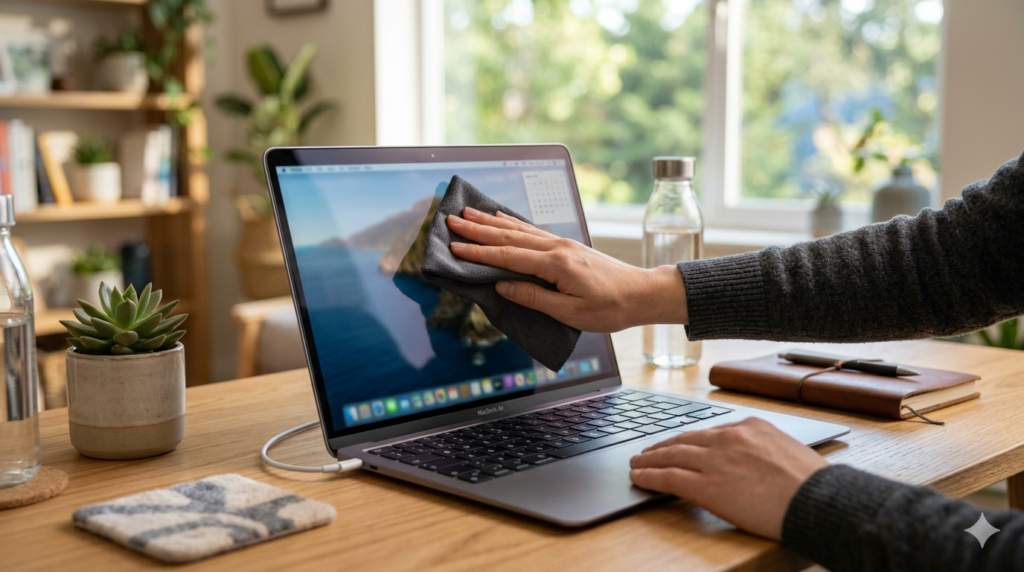
When the screen gets covered in fingerprints and the keyboard gets greasy, do not reach for the Windex or generic glass cleaners. These products contain ammonia or alcohol, which can permanently strip away the anti-glare coatings engineered into modern laptop screens, leaving behind permanent, cloudy streaks.
Instead, invest in a high-quality, dry microfiber cloth (the kind used for eyeglasses). For stubborn smudges, turn the laptop off and slightly dampen the cloth with distilled water—never spray anything directly onto the machine. Wipe in gentle, circular motions. For disinfection, you can use a cloth lightly dampened with 70% Isopropyl alcohol, but use it sparingly and avoid the screen if you can.
Summary Checklist: Your Monthly Routine
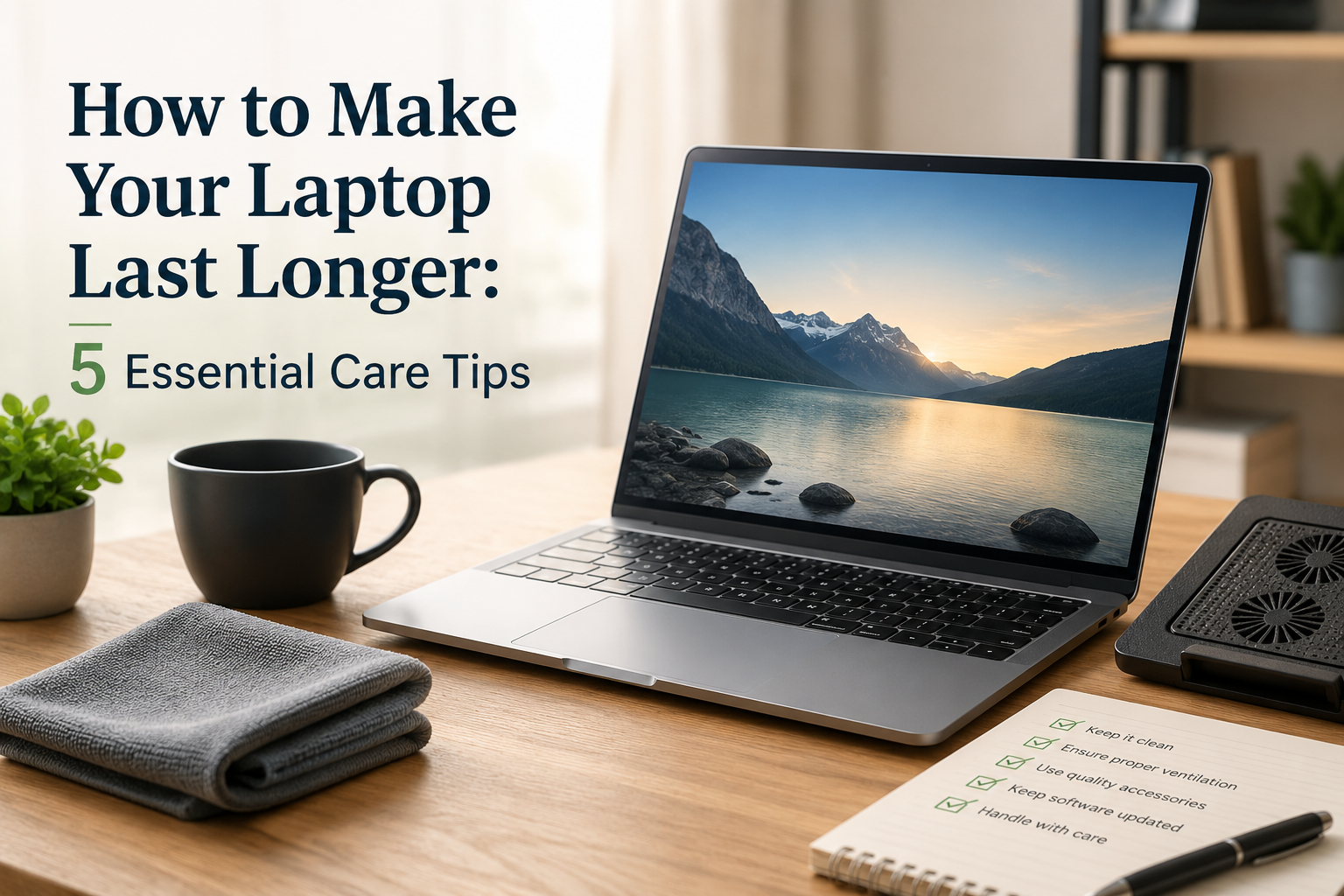
To wrap it all up, taking care of your laptop doesn’t require hours of tedious work. If you can just commit to this quick monthly checklist, your computer will reward you by running beautifully for years to come:
- Every Week: Give your laptop a full restart instead of just closing the lid.
- Every Month: Wipe down the screen with a dry microfiber cloth and check your storage drive to ensure you have at least 15% free space.
- Every 6 Months: Use a can of compressed air to blow the dust out of the cooling vents.
- Permanently: Turn on your laptop’s built-in battery limit feature to cap your charge at 80% if you use it plugged in most of the time.